This page
Control-by-control explanation: what each switch does and where it breaks real workflows.
No-download, no-copy, no-print, and expiry all sound similar, but they solve different risks. Picking the right one starts with understanding each control's job and tradeoff.
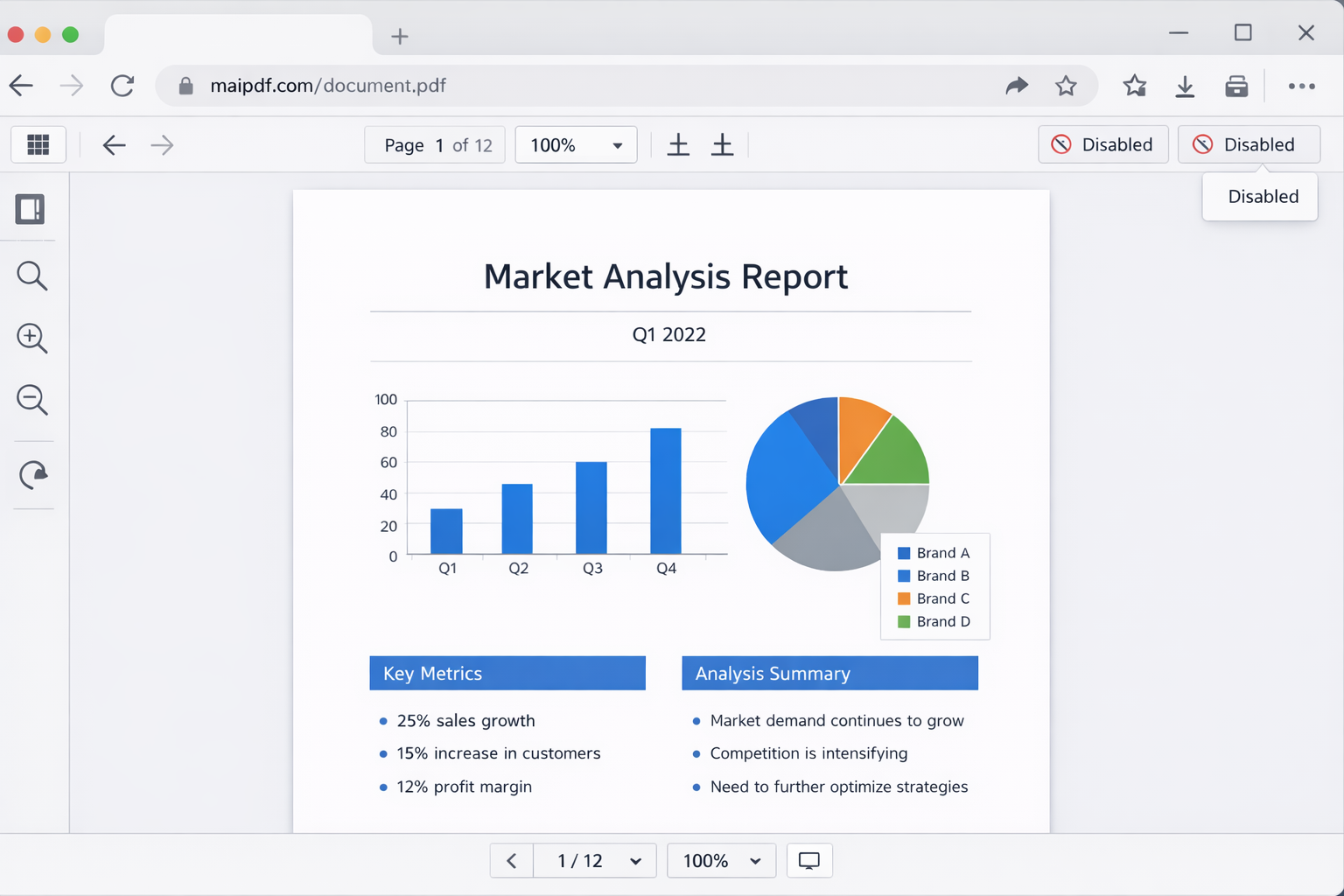
Job: reduce direct file handoff. Readers stay in-browser and cannot get an official local copy through normal flow.
Good for: proposals, pitch decks, partner docs where “view yes, file transfer no”.
Watch out: not ideal for offline-use materials.
Job: make select-copy/paste harder for normal users.
Good for: text-heavy proprietary content and draft clauses.
Watch out: can annoy users who need to copy harmless details like contact lines.
Job: block print output in normal viewer flow.
Good for: exam content, internal training packs, limited-circulation material.
Watch out: may break legal or procurement workflows that still require print review/signing.
Job: time-box exposure so old links stop working automatically.
Good for: tenders, dated quotes, campaign-only documents.
Watch out: avoid for evergreen docs unless you truly want links to die later.

| Document type | No download | No copy | No print | Expiry | Why |
|---|---|---|---|---|---|
| Public brochure | Optional | No | No | No | Reach matters more than friction |
| Quote / proposal | Yes | Optional | Often yes | Yes | Control reuse after validity window |
| Portfolio | Yes | Optional | Optional | Optional | Deter casual reuse and uncontrolled file spread |
| Contract draft | Yes | Yes | Usually no | Yes | Need review control, but may still need print |
| Exam/training material | Yes | Yes | Yes | Yes | Temporary and high misuse sensitivity |
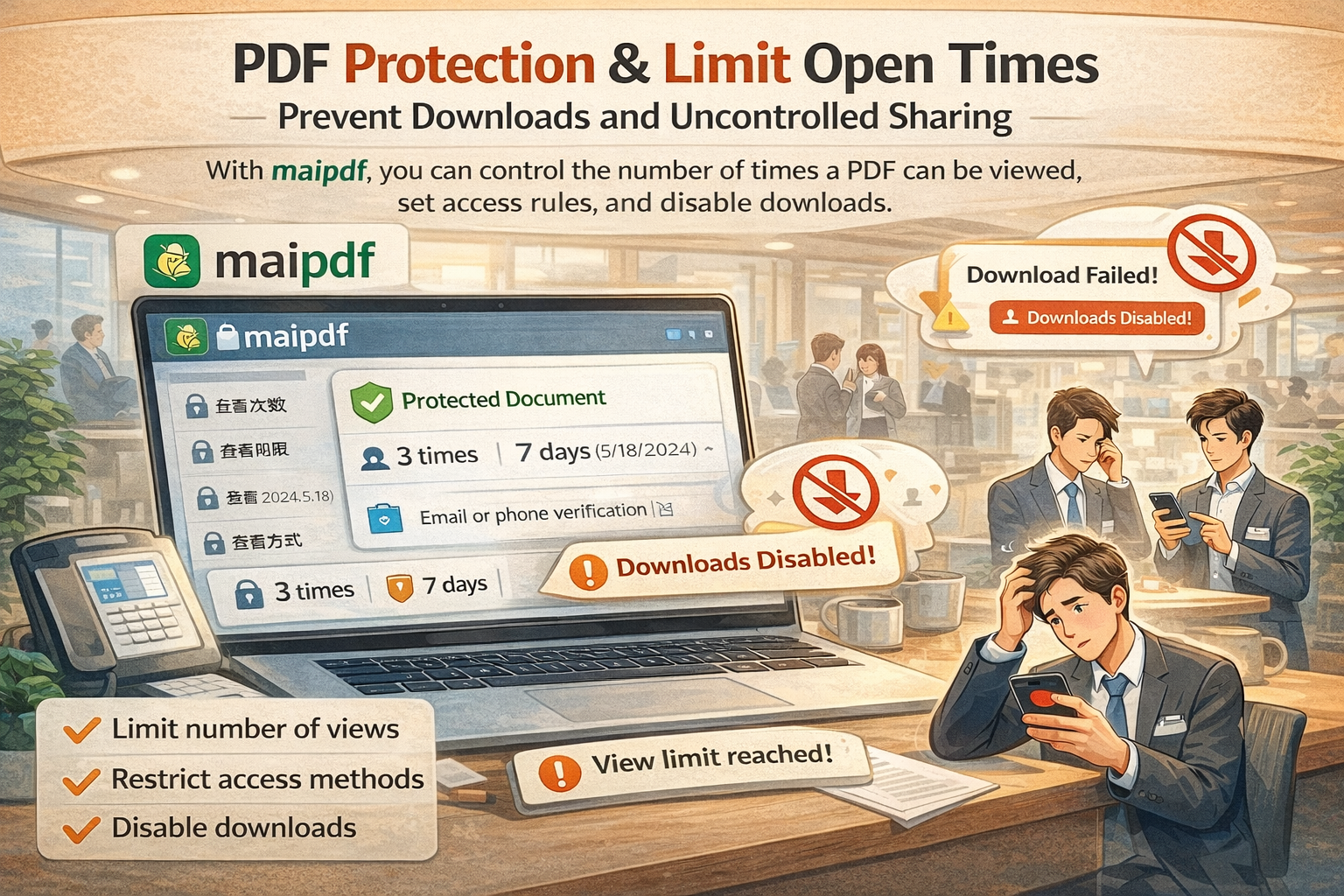
Control-by-control explanation: what each switch does and where it breaks real workflows.
Decision guide: a fast question flow to pick a practical bundle for your exact scenario.
They block easy misuse paths and reduce accidental leakage in everyday workflows.
On-screen material can still be captured by camera or manually rewritten. Set expectations accordingly.