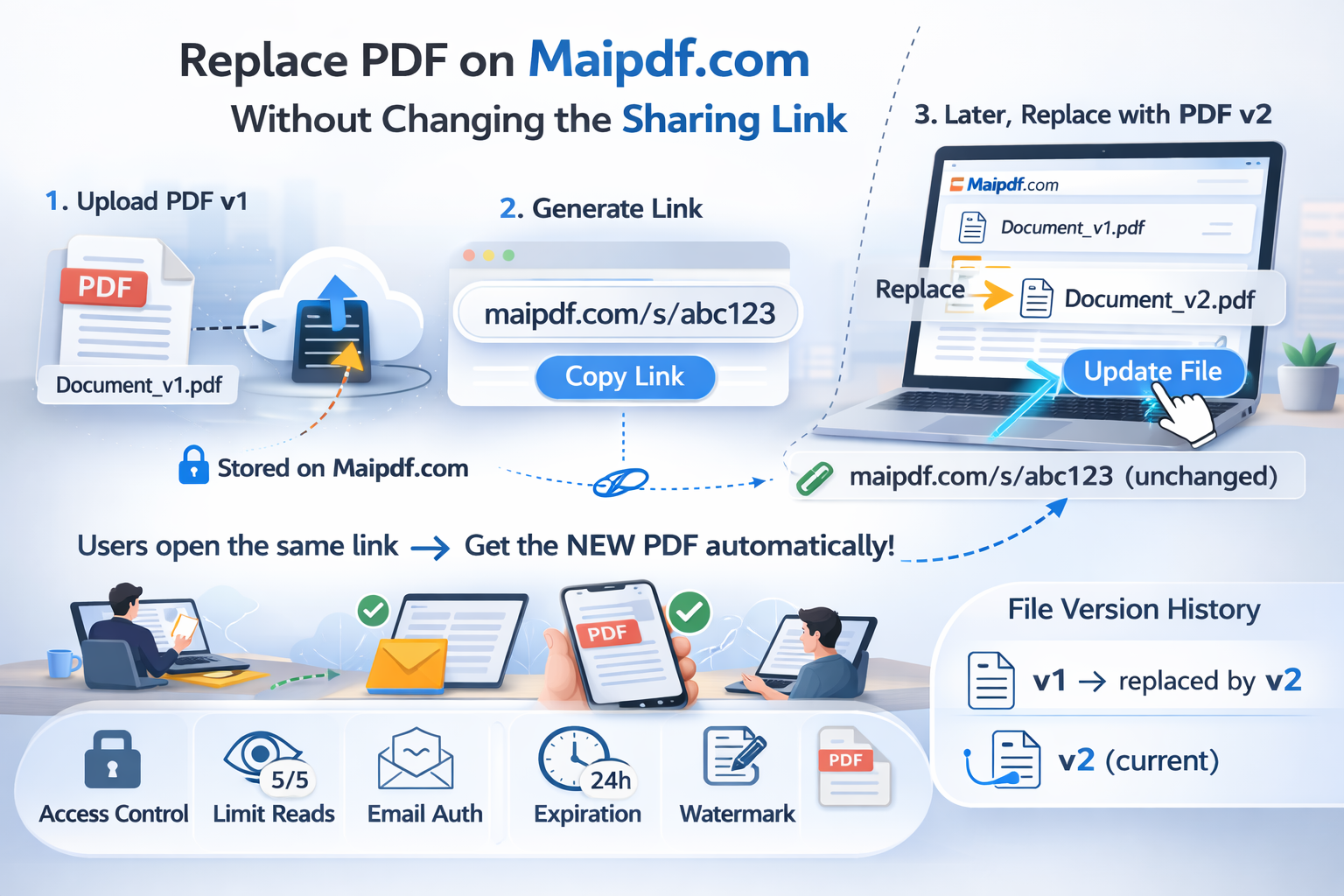
1. Share once
Upload, set expiry / verification if needed, then distribute the link or QR. From here on, treat that URL as the long-lived contract with readers.
When pricing, specs, or legal wording change, you should not have to re-send a new URL to every partner. Swap the file behind the same entry so QR prints and old emails still resolve to the latest PDF.
That is the difference between “mailing a file” and keeping an entrance: the URL and QR stay the canonical pointer; only the document behind it changes.
Hero art uses show_off visuals—short, readable marketing frames meant for pages like this—not full product screenshots, which belong in docs or deep tutorials.
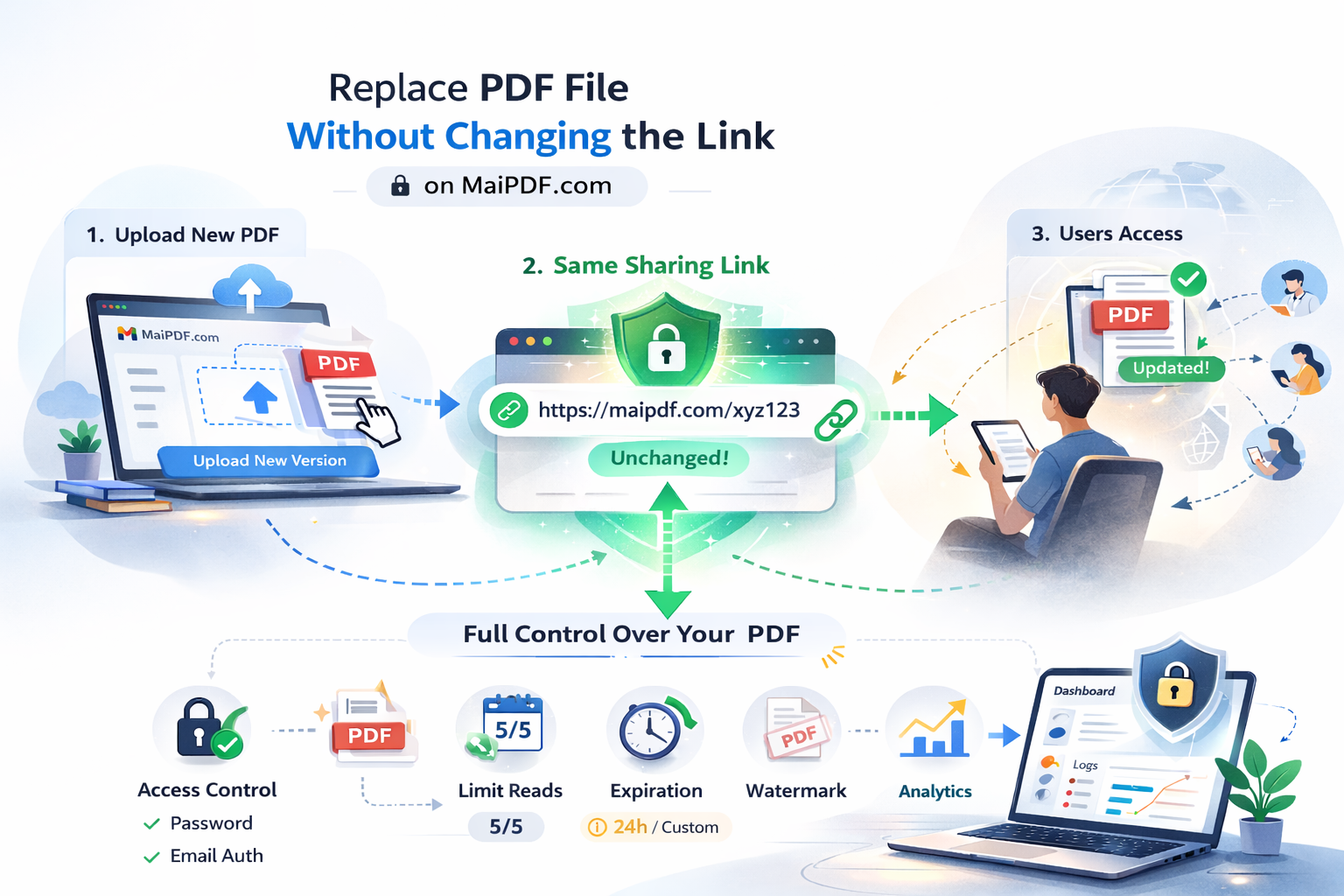
Upload, set expiry / verification if needed, then distribute the link or QR. From here on, treat that URL as the long-lived contract with readers.
In the link editor / control panel, select the same entry and upload the new PDF. You are updating the backing file, not minting a second public address.
After a refresh or the next open, the same path resolves to the updated document. Bookmarks, QR scans, and pasted URLs keep working.
Support stops chasing “which link is current?” Legal and comms can fix wording without a new campaign ID. Field teams keep one code on laminated sheets.
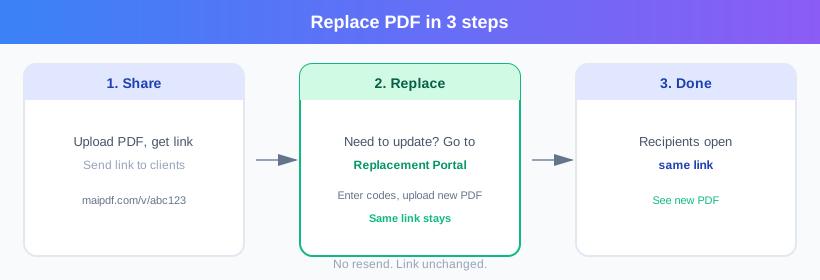
Replacing the PDF does not automatically mean your policy is still correct for the new content—only that the address stayed the same.
Public URL, QR image, and entry identity stay put, so anything already distributed keeps working.
If the new PDF is more sensitive, tighten gates: expiry, open caps, SecureView/FenceView, and allowlisted email verification (English product: email, not SMS).
For step-by-step UI, use the in-app editor; blog heroes should stay lightweight—hence a second show_off frame below instead of another full screenshot.
Use Open link editor above for the live UI. This article keeps the story short; detailed screenshots belong in help docs, not stretched across the hero.